Sunday, April 5, 2020

How to install a website as a Windows 10 app for quick access.

Microsoft has a lot of apps in its store but some popular apps are missing and can only be accessed in a browser. Take Youtube for example. There is no official for it and the browser is the only way to view your videos. However, there is a feature in the Microsoft Edge browser that lets you install the website as an app that you can then pin to the Start menu or to the taskbar for quick access and I'm going to show you how to do just that.

What you will need:

How to install a website as an app.
  1. Navigate to www.youtube.com .
  2. Click the 3 horizontal dots in the top right corner.
  3. Click Apps and select Install this site as an app.
  4. Click Install.
The app will now show in the Start menu. Right-click on it and select Pin to Start. To pin the app to the taskbar, right-click and select More and click Pin to taskbar. Now the site will look just like any Windows 10 app just one click away.

Saturday, April 4, 2020

How to send and receive WhatsApp messages on your PC without reaching for your phone.

The other day I posted an article about how to make calls from your PC without reaching for your phone and today I'll show you how to use WhatsApp on your computer while working from home. The setup process is quite straightforward.

What you will need:

After you download the above apps, open WhatsApp on your phone. Click the three vertical dots at the top right of the screen and tap WhatsApp Web. 

Open WhatsApp Web on your browser on your computer. On your phone, use the QR scanner within WhatsApp to scan the QR code.

Open WhatsApp Desktop and you will see your message history and you can send and receive WhatsApp messages on your computer without reaching for your phone. Unfortunately, WhatsApp video calls are not supported, only text and audio messages.

Note that Facebook Messenger for Windows supports video calls. It is available for free on Microsoft Store.

Tuesday, March 31, 2020

How to make and receive calls on your PC without reaching for your phone.

In these unprecedented times, many of us are working from home on computers and at times, more often than not, juggling between the computer and the phone. But it does not have to be that way. It is possible to use both without any juggling. How? With Microsoft's Your Phone App for Android. This app will get your phone and your Windows 10 computer talking to each other and will route notifications, text messages to your PC. The most exciting feature is the ability to make and receive phone calls on your PC without touching your phone. 

For the magic to work, you will need a PC running Windows 10 version 1803 or higher and a phone running Android 7 or higher. Sorry Mac and iPhone users, nothing for you here.

You must sign in with a Microsoft account both on your PC and in the app on your phone. After you've signed in, they are ready to talk to each other. But first, make sure both devices are connected to the same network; That would be your home Wi-Fi. You will receive a notification on your phone asking that you allow the connection between your devices. Go ahead and hit allow and Android phone will appear in the Your Phone app on the PC

Open Your Phone on your PC. You will see Calls in the left column. But before you can start using it, a Bluetooth connection must be established between your phone and the computer.

Click Calls and Get Started. Your PC will ask whether you want to "Let Your Phone make phone calls?". Click Yes. From there, just follow the on-screen instructions. Enable Bluetooth on your phone and click Setup on the computer. Click Pair if both PIN matches. That's it. You're all set.

You will see the phone dialer on your PC. Start dialing or use the Search box to find contacts stored on your phone. Note that you can easily switch back to your phone during a call.

Let me know if run into problems during setup or have questions.


New Telegram's chat folder and archiving will help you unclutter your feed.

In an update published today, Telegram introduces chat folders, a feature users with a lot of activity in their feed will certainly appreciate as it will help unclutter their feed and quickly and easily sort through their messages. Users can create custom folders in the app settings or use the preset folders and these folders can appear as tabs in the app. 

Version 6.0.1 of Telegram also lets you easily transfer your chats to the archived chats folder with a simple swipe from the left. Unless you choose to mute the chat, archived chats that receive a notification will reappear in your feed.

Chat folder and archiving are, in my opinion, the most important elements in this update, but there are more features, most of them related to the folders. See the full changelog below.

• Organize chats into Chat Folders if you have too many chats.
• Create custom folders with flexible settings, or use default recommendations.
• Pin an unlimited number of chats in each folder.
• Swipe between folders to easily access all of your chats.
• View detailed statistics about the growth of your channels and the performance of their posts.
• Send :dice: to any chat to try your luck and get a random number from the animated dice.

Source: Telegram
Download: Play Store

Saturday, January 25, 2020

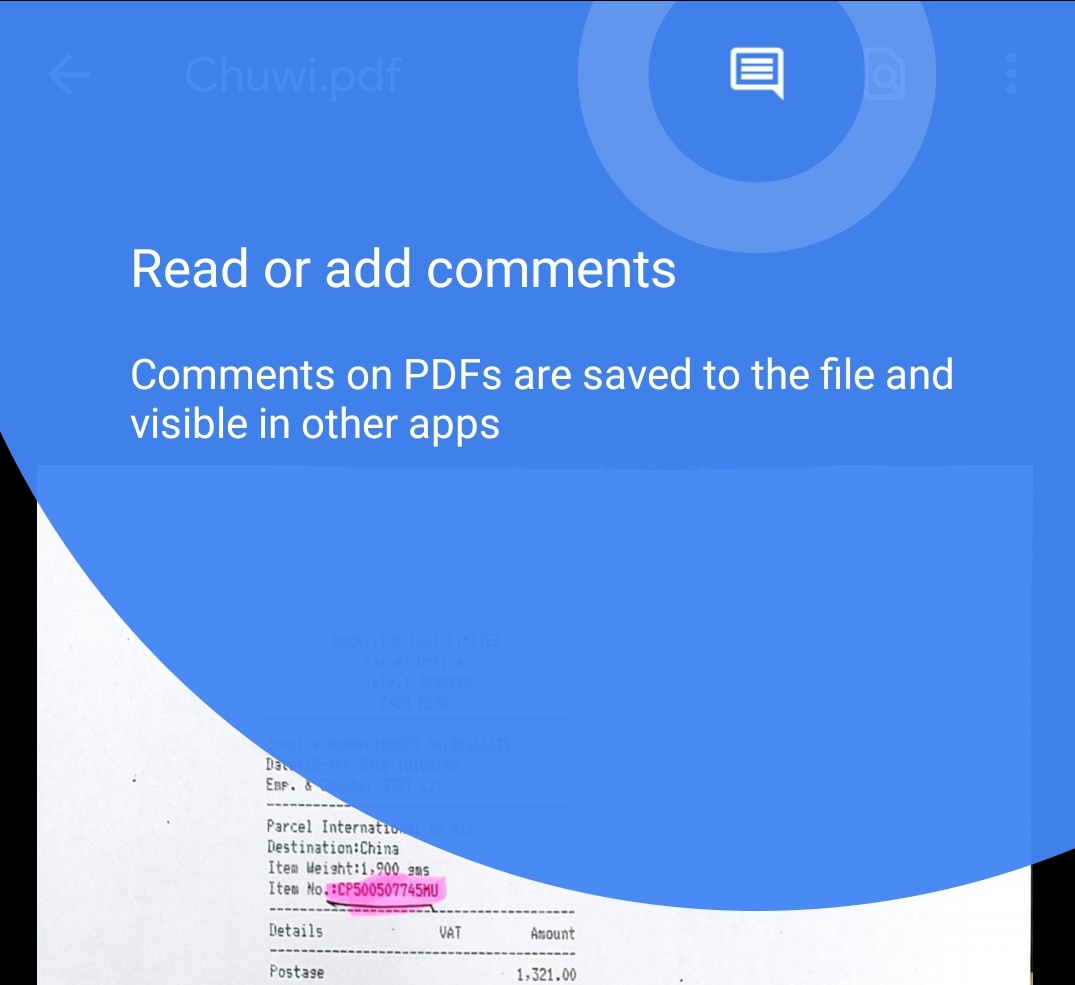
Acrobat Reader is now accessible from Google Drive to add/reply to comments.

Adobe added a nice feature to Acrobat Reader for Android allowing users to quickly annotate files on Google Drive without leaving the app. Once annotated, any persons with access to the file will be able to reply to and see comments from other users for discussions. In addition, comments can be edited and all changed saved within the file back to Google Drive.

To add a comment, tap the new comment icon at the top of the screen. Then tap "Add new" under the pdf file. Tap an area to comment on and "add comment". Type your comment and tap "Comment" to post your comment. It's that easy.

Adobe also improved multi-identity support for Microsoft Intune users. Microsoft Intune is a cloud-based management solution for mobile devices and operating system management. This update also includes the usual improved performance and stability.

Adobe Acrobat for Android can be downloaded free on Google Play Store.

Thursday, January 16, 2020

F1 2020 season calendar is now available on Android.

In 56 days, 9 hours and 40 minutes, in Melbourne, about 24 of the world’s best drivers will rev up their powerful engines for the first time this year to claim the F1 teams and drivers’ championship. Lewis Hamilton, the current world champion will try to win his sixth. Hopefully, Ferrari will put up a fight this year, unlike the years where Hamilton won the previous six. 
This year, the official app has been updated with the 2020 race calendar which starts on the 12th of March in Melbourne. Session times for each round will follow soon. The changelog also states that it will be "easier than ever to replay live timing sessions with replay buttons now placed more prominently around the app after a race weekend." Of course, there are the usual bug fixes and performance improvements.
Check out the update on Google Play Store. 

Friday, December 20, 2019

Google Translate improves offline translation by 12% and transliteration by 20%.

The language barrier is a problem when traveling, but apps like Google Translate makes it a bit easier to read road signs and even engage in short conversations with locals. Add to that offline translation and you get the perfect translation tool in case you do not have a data plan or you're in an area where the internet is spotty. Google Translate has long offered offline translation, but it was not a great experience in some cases. According to Google, the experience just got more accurate by 12% "with improved word choice, grammar, and sentence structure." Sami Iqram said in a blog post that "some languages like Japanese, Korean, Thai, Polish, and Hindi the quality is more than 20 percent." And there's more.

Enter Transliteration. This tool helps spell and pronounce words that are written in a script you do not understand. As an example, "when you translate “hello” to Hindi, you will see “नमस्ते” and “namaste” in the translation card where “namaste” is the transliteration of “नमस्ते.” Google Translate supports transliteration for the following languages: Arabic, Bengali, Gujarati, Marathi, Tamil, Telegu, and Urdu.


You can download Google Translate in the Play Store.

OnePlus announces new bug bounty program and partnership with HackerOne.

After suffering two data breaches in its history, OnePlus is today launching a new bug bounty of its own that will pay between $50 up to $7000 dollars to security professionals who discover threats to its security systems. To make this happen, OnePlus created the Global OnePlus Security Response Center, which, the company says, "will engage academics and security professionals to responsibly discover, disclose and remediate issues that could affect the security of OnePlus' systems...". Security professionals can find details about the programs by visiting this website. OnePlus said a public version of the program will be available next year.

OnePlus also announced that it is partnering with HackerOne which will start as a pilot program. Select researches will be invited "to test out OnePlus' systems against potential threats." 

It's great to see OnePlus taking the security of its systems seriously to prevent any future mishaps.

Source: OnePlus

Saturday, October 12, 2019

Microsoft Launcher 5.9 brings live update to "your original calendar app icon." (Whatever that means.)

Microsoft posted an update today for their Android Launcher. The update has me confused though. The changelog says this: "Live date update is now available on your original calendar app icon, and Microsoft Launcher calendar icon is also updated with a cleaner look."

My "original calendar app" is Google calendar and the app icon is live. In case you're wondering what's a live icon, it's simply an icon that shows you today's date. In other words, this is a feature built into Google Calendar and has been there for a while, like forever. So I really don't know what Microsoft is referring to. Let me know if I'm missing something.

So there you have it. Version 5.9 of Microsoft Launcher for Android brings you live calendar app icon. And the icon has a cleaner look. 

Microsoft Launcher is available for free in Google Play store.

Sunday, September 29, 2019

Microsoft Outlook for Android will soon let users RSVP from their lock screen.

Microsoft released an update today for Outlook on Android that lets users quickly RSVP to meeting requests right from the notification on the lock screen, thus circumventing the need to unlock the phone first. However, at the time I'm writing this post, only the changelog has been updated.

After installing the update on my OnePlus 6T, I decided to test the new RSVP feature. I created a test event on my iPhone and sent an invite to my Outlook.com account. The event did show up in my OnePlus notification on the lock screen but without the 'RSVP' feature. Only 'Accept', 'Decline', and 'Tentative" were there. The RSVP feature is still in the invite email.

I'm not sure why the new feature is missing after installing the update or maybe a Microsoft employee forgot to toggle that server switch. Anyway, check it out in Google Play store. The 'RSVP' button will eventually show up.

WHAT'S NEW

RSVP to meeting invites in the moment! The next time you're invited to a meeting you can RSVP right from the push notification on your lock screen.

Saturday, September 21, 2019

Microsoft Outlook now lets users easily compress videos to avoid attachment limit.

Sending attachments in emails can be a frustrating experience because of the size limitations imposed on us by the service providers. All of them - Outlook, Gmail, Yahoo - have the same limitations and while they may sometimes frustrate us, users, these limitations exist to save precious storage and bandwidth. Currently, the attachment size limit in Outlook is a measly 34 MB. If sending from OoneDrive, the size gets bumped up to 2 GB. However, Microsoft Outlook for Android has decided to give its users some slack.


The latest update to Microsoft Outlook allows users to send videos that exceed the attachment limit by compressing them. The app now has an option to easily compress the videos before sending them. I'm sure some will welcome this new feature. Personally, it does not make a difference as I always upload whatever I need to share to my OneDrive and send a link to it to my recipients.


The update is available for download on Google Play store. Check it out.

Friday, September 13, 2019

Google One will now automatically backup your phone data.

Google One cloud storage went live last year offering a paid storage for backing up phone data to the cloud. Starting at $1.99 per month, users are offered storage options ranging from 100GB to 30TB to save messages, photos, videos, and contacts online in case disaster strikes. 

Yesterday Google announced in a blog post they're improving the service. Besides the standard features mentioned above, Google One will now automatically backup your phone. In addition, the service will backup original quality photos, videos, and multimedia messages (MMS). And users will be able to manage all that on their Android devices from the Google One app.

Google said, "With Google One, you already get more storage for your photos, videos, and documents—giving you the peace of mind that your memories and important files are stored in the cloud. Now with automatic phone backup, we're taking another step in helping you keep the stuff you care about safe." 

Source: Google

Thursday, September 12, 2019

How to: Send web pages from Chrome desktop to your Android phone and vice-versa.


Before diving in, first verify you have the latest version of Chrome installed on your computer and phone, and that you use the same Google account on all your devices. Using the same account is key to synchronizing such things as tabs, favorites across all your devices.


The ability to send tabs or web pages from a device to another is recent. Google took its time to implement, test, deploy the feature, but it’s been available through extensions and third-party software.

I'm going to show you how to send pages to and from your Android device. But first, you have to download and install the latest version of Chrome for Android an all your devices. Once that is done, open a website on your computer in Chrome. Then, with your mouse, right-click on the tab and select "Send to your devices". In doing so, you will see the devices on which you signed in with your Google account. Select the device you want to send the site to. You will receive a notification with the title of the website and the name of the computer from which it was sent on your phone. Tap the notification on your phone to open the page.

Like I said earlier, this works both ways. If for some reason, you want to send a page from your phone to your computer, follow these steps.

Open the site on your Android device. Then click the three vertical dots at the top-right corner and click "Share..." to open the share menu. In the menu, click "Send to your devices" - that's the icon with the Chrome icon - and click the device listed in the "Send to" menu. Click the notification in the "Action Center" on your Windows 10 computer to open the site.

It's as simple as that. I love this feature.


Tuesday, September 10, 2019

Google Docs for business now displays word count as users type.

Starting today, Google will be rolling out a minor but very useful update to Google Docs for businesses that will give users the ability to view their word count live while working on a document. This feature can be extremely useful if you're limited to a certain number of words in the document you're drafting.

Word Count has been available in Google Docs for a while, it just wasn't handily available and required users to stop typing, dive into the menus to fetch the data. "Instead of going to Tools > Word Count each time you want to view this information, now, you can simply select Tools > Word count > Display word count while typing to continuously display it in the lower-left corner of your doc.", Google wrote in a blog post.

There's more. Clicking on the Word Count box will provide additional information like page count, character count, and even counts per section of the document.

As I said above, the update is gradually rolling out and is intended for business users. Google did not say if Word Count is coming to home/mobile users.

Source: Google

Sunday, September 8, 2019

How to: change the background color of the Google Search widget on Android.


By default, the Google Search widget on Android phone and tablet has a white background. But thanks to Android openness when it comes to customization, it is possible to change the color to your liking and the steps to do so is very simple. Just follow through and you'll be able to customize the search bar to your liking.

If it's not already the case, add the Google Search widget to your home screen.
  • Press and hold in an empty space on your Home screen.
  • Tap Widget at the bottom of the screen.
  • Scroll down until you find Google Search in the list.
  • Tap and hold, then drag the widget to your Home screen and release.
  • That's it. Now you have the Google Search Widget on your screen.
The next step is to customize the widget with the color you like.
  • Tap the Google Search bar to open it.
  • Tap "More", then "Customize widget".
  • Tap the color palette. That's the third icon from the left.
  • Tap the edit icon. That's the first icon from the right.
  • Use the color sliders to choose the colors you want. The sliders let you mix the colors to get different color gradients.
  • Tap Done when you made your choice.
  • Go back to the Home screen and admire your work.
That's pretty easy. You may go back through these steps anytime to change the color to, say, match your mood.

Saturday, June 29, 2019

Official Premier League app for Android updated with 2019/20 Fantasy Premier League season.

Originally created in 1971 by Bernie Donnelly, Fantasy football is a game in which participants assemble an imaginary team of real-life players and score points based on those players' statistics; and this is still a thing 45 years later in a variety of sports. With the Premier League starting in August, the Premier League app now includes the 2919/20 league game. So if you're into Fantasy League, hit that update button in Google Play Store on your device. I can't wait for the Premier League season to begin.

Friday, May 31, 2019

Microsoft Launcher for Android now supports Adaptive Icons; restores hidden dock.

Microsoft has updated its Launcher app for Android today and if you're using it on your device, it's worth a look. This new version introduces adaptive icons. Adaptive icons, as the name suggests, adapt to any shape or size on your device. Almost all launchers available on Android supports this feature making all app icons on your devices look the same, standardized. It's great to see Microsoft follow the trend and make its Launcher app much more pleasant and neat.

Additionally, this update restores the hidden dock. I'm not sure why it was removed in the first place, but it's back and Microsoft lets you hide the dock if you want to and still be able to access your apps and widgets.

Microsoft also made some UX adjustments which the company says will allow users to access "shortcuts when the home screen is locked."

Now, if you don't want to set Microsoft Launcher as your default, this update will still let you get notification badges for calling and messaging apps. However, if you want better accuracy, Microsoft recommends setting Launcher as your default assistant.

Microsoft Launcher is a neat launcher or assistant for your Android device. Sure there are other launchers out there, but Microsoft Launcher stands out for its simplicity. Do check it out if you're not using it yet. It's available free in Google Play Store.

Thursday, March 21, 2019

Opera browser for Android now comes with a free VPN built right into it.

I use Opera browser on my Windows Computer and the reason for that being that the browser comes with a VPN built right into it. A VPN allows users to browse the Internet in a secure way and I strongly recommend you use one when connected to a public network. Unfortunately, not all browsers offer this feature. But that changes today thanks to Opera. Users won't need to subscribe to a third party VPN.

Opera had a free dedicated VPN app for Android back in 2016. However, the app was shutdown in 2017. Two years later, Opera is now offering the VPN functionality right into the Opera browser for Android; which, if you ask me, is awesome.

Turning on the VPN is very easy. Simply tap the new VPN icon at the top left corner of the browser and toggle it on. It's as easy as that. As with the dedicated app, The VPN feature remains free to use.

The new VPN feature is available in version 51 of the app. The update is available in some countries to download. But it's not available yet in Mauritius at the time I'm writing this post. Do check out in Google Play Store as the update gets gradually rolling out. Safe browsing to you all.

Wednesday, March 20, 2019

SofaScore introduces graph with monthly average player ratings in latest update for Android.

Today SofaScore published an update to its Android app that should make stats geek happy. The app already offers a myriad of built-in tools for users to keep track of their favorite teams and players performance. In today's update, SofaScore introduces graph with average player ratings per month, the ability to switch players with a simple swipe, and more. See the full changelog below for details.
  • Graph with average player ratings per month (in player details). Tap on the graph to change between number of matches and average rating.
  • Swipe left or right to change the player in pop-up (from lineups and box-score).
  • Dropdown menu for easier selecting statistics in "top players" and "top teams".
  • "Matches" tab in Manager page.
  •  "Media" tab in Motorsports.
The update is available for download in Google Play Store.

Friday, March 8, 2019

Formula 1 app for Android updated with new leadership board for 2019 season.


We're a week away from the beginning of the 2019 seasons and the official Formula 1 app for Android has been updated based on fan feedback. At least, that's what the app "What's New" says.

The app has been redesigned with an optimized live leadership board. With that, users will be able to see more drivers data. I haven't seen what this change brings yet as I haven't downloaded the update yet. And I'm not even sure it will show more driver data. But I'll keep you posted next week after the new season begins.

This update will also allow fans to track driver data with a split screen of the live leaderboard data. Just select a driver and the app will display the driver's data in the other half of the screen. A much welcome addition.

That's all about it for now, but I expect to see another update before the Melbourne GP. The app has yet to be updated for the year 2019 calendar. So expect another update during next week.
In the meantime, download the Formula 1 app update in Google Play Store.