Showing posts with label Productivity. Show all posts

Saturday, April 4, 2020

How to send and receive WhatsApp messages on your PC without reaching for your phone.

The other day I posted an article about how to make calls from your PC without reaching for your phone and today I'll show you how to use WhatsApp on your computer while working from home. The setup process is quite straightforward.

What you will need:

After you download the above apps, open WhatsApp on your phone. Click the three vertical dots at the top right of the screen and tap WhatsApp Web. 

Open WhatsApp Web on your browser on your computer. On your phone, use the QR scanner within WhatsApp to scan the QR code.

Open WhatsApp Desktop and you will see your message history and you can send and receive WhatsApp messages on your computer without reaching for your phone. Unfortunately, WhatsApp video calls are not supported, only text and audio messages.

Note that Facebook Messenger for Windows supports video calls. It is available for free on Microsoft Store.

Tuesday, March 31, 2020

How to make and receive calls on your PC without reaching for your phone.

In these unprecedented times, many of us are working from home on computers and at times, more often than not, juggling between the computer and the phone. But it does not have to be that way. It is possible to use both without any juggling. How? With Microsoft's Your Phone App for Android. This app will get your phone and your Windows 10 computer talking to each other and will route notifications, text messages to your PC. The most exciting feature is the ability to make and receive phone calls on your PC without touching your phone. 

For the magic to work, you will need a PC running Windows 10 version 1803 or higher and a phone running Android 7 or higher. Sorry Mac and iPhone users, nothing for you here.

You must sign in with a Microsoft account both on your PC and in the app on your phone. After you've signed in, they are ready to talk to each other. But first, make sure both devices are connected to the same network; That would be your home Wi-Fi. You will receive a notification on your phone asking that you allow the connection between your devices. Go ahead and hit allow and Android phone will appear in the Your Phone app on the PC

Open Your Phone on your PC. You will see Calls in the left column. But before you can start using it, a Bluetooth connection must be established between your phone and the computer.

Click Calls and Get Started. Your PC will ask whether you want to "Let Your Phone make phone calls?". Click Yes. From there, just follow the on-screen instructions. Enable Bluetooth on your phone and click Setup on the computer. Click Pair if both PIN matches. That's it. You're all set.

You will see the phone dialer on your PC. Start dialing or use the Search box to find contacts stored on your phone. Note that you can easily switch back to your phone during a call.

Let me know if run into problems during setup or have questions.


Saturday, January 25, 2020

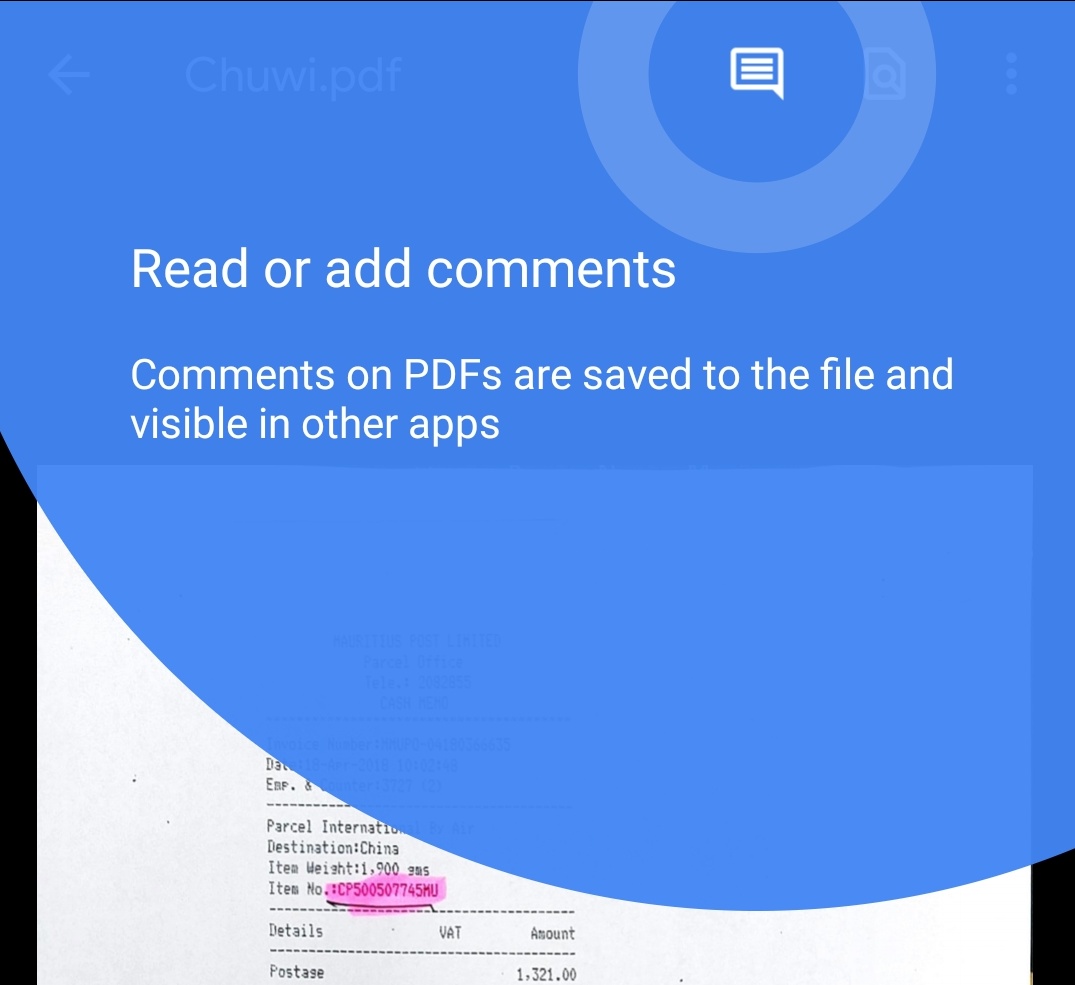
Acrobat Reader is now accessible from Google Drive to add/reply to comments.

Adobe added a nice feature to Acrobat Reader for Android allowing users to quickly annotate files on Google Drive without leaving the app. Once annotated, any persons with access to the file will be able to reply to and see comments from other users for discussions. In addition, comments can be edited and all changed saved within the file back to Google Drive.

To add a comment, tap the new comment icon at the top of the screen. Then tap "Add new" under the pdf file. Tap an area to comment on and "add comment". Type your comment and tap "Comment" to post your comment. It's that easy.

Adobe also improved multi-identity support for Microsoft Intune users. Microsoft Intune is a cloud-based management solution for mobile devices and operating system management. This update also includes the usual improved performance and stability.

Adobe Acrobat for Android can be downloaded free on Google Play Store.

Tuesday, September 10, 2019

Google Docs for business now displays word count as users type.

Starting today, Google will be rolling out a minor but very useful update to Google Docs for businesses that will give users the ability to view their word count live while working on a document. This feature can be extremely useful if you're limited to a certain number of words in the document you're drafting.

Word Count has been available in Google Docs for a while, it just wasn't handily available and required users to stop typing, dive into the menus to fetch the data. "Instead of going to Tools > Word Count each time you want to view this information, now, you can simply select Tools > Word count > Display word count while typing to continuously display it in the lower-left corner of your doc.", Google wrote in a blog post.

There's more. Clicking on the Word Count box will provide additional information like page count, character count, and even counts per section of the document.

As I said above, the update is gradually rolling out and is intended for business users. Google did not say if Word Count is coming to home/mobile users.

Source: Google

Thursday, August 23, 2018

Google adds quick-side panel to Docs, Sheets, Slides and Drawings to make G Suite users more productive.

Google added a quick-side panel to its productivity suite with the objective of making G Suite users more productive. The quick-side panel will allow users to do their job without leaving Google Docs, Sheets, Slides and Drawings. Three Google products will be available within these apps and they are google Calendar , keep and Tasks. So far, the side panel has been available in Gmail. This update brings the same feature to Google Calendar where users will be able to use Keep and Tasks, thanks to the side panel.

The update is rolling out now and G Suite users will start seeing it within 15 days.

Source: Google

Wednesday, August 1, 2018

Microsoft Outlook for Android quietly gets a 'Delete' button in the notification area.

Microsoft has quietly added a much-requested feature to Outlook for Android which lets users quickly delete an email right in the notification area. Now, Outlook users will get the options to Archive, Delete, and reply to emails in Android's notification area without having to open the Outlook app first. Prior to this update, users could only archive and reply to messages. 

The addition of a 'Delete' button to the Outlook notification is very useful for situations where the provided preview is more than enough and you don't need to take any further action on the email. I for one surely welcome the 'Delete' button.

I'm not sure if this feature is being deployed through an update or is just a server-enabled feature. Either way, you can always download Outlook for Android in Google Play Store.

Saturday, March 17, 2018

Microsoft Outlook for Android supports viewing inline images and opening of attachments in Calendar events.


Microsoft is finally letting users view inline images in Outlook Calendar on Android. Additionally, Microsoft Outlook Calendar also supports opening the attachments or viewing them inline. The software giant says this can be done from the event details.

While this new feature sounds great, in my opinion, it only highlights Microsoft Outlook shortcomings. First, this a long overdue feature. Secondly, the app still does not support attaching files directly in the app on Android. Sure, this can be done in the email part, but it is still not possible to rely entirely on the Calendar section to get things done and not being able to add an attachment to an event on my devices is a bummer.

Hopefully, Microsoft will bring adding attachments to calendar events soon. Until then, grab today's update in the Play Store.

Saturday, January 13, 2018

Finally, Microsoft Outlook for Android lets you easily mark messages as spam and empty spam folder with one tap.


Microsoft Outlook for Android got updated today and this time it’s not just the usual weekly updates which also includes the usual performance improvements and bug fixes. This time, Microsoft added a new feature that I find to be very useful. Actually, it’s two. Kind-of.

And it was about time. Finally, the Outlook app gets a ‘Move to spam’ option in the app menu. Before this update, users only had the ‘Move to folder’ option to move emails they considered spam to the spam folder. Now, all they need to do is select one or more messages in their Inbox and tap the new ‘Move to spam’ to get the job done. And there’s more.

Microsoft also made it easier for users to empty the Spam folder with one tap. As can be seen in the screenshot above, Microsoft added an ‘Empty Spam’ button at the top-right of the app. I check my Spam folder every day and it was a pain to clear it manually, which required a series of steps. That’s history now. That said, it was about time for Microsoft to add such a simple feature to Outlook.

Download the update in Google Play Store.

Wednesday, January 3, 2018

OneNote for Android gets Office Lens integration, phone number sign-in.


Hey OneNote users, Microsoft has a treat of an update for you today- kind of. The changelog lists four new features, so let’s take a look at each of them. Well, actually, let’s get item #4, which is the usual bug fixes and performance improvements, out of the way. Let’s dive in the new features.

OneNote for Android now integrates with Microsoft Office Lens, a scanning app that lets users scan, crop and rotate photos, documents, whiteboards, and business-cards. I use Office Lens on all my devices and this feature is very welcome on Android. However, I could not get it to work after installing the update. OneNote’s camera does not give me any option to switch between documents scanning or whiteboards. Maybe I’m missing something here, but I’ll keep searching this and update this post later after I’ve figured it all out.

The second feature lets users create notes with a press and hold on the OneNote icon. This feature has been baked into Android Nougat and higher. The press and hold actually lets users record an audio, insert a photo, create a to-do list and, obviously, create a simple note. This feature is actually working, unlike the Office Lens integration.

The third item allows users to sign in to OneNote with a phone number. Again, I could not find anything in the app settings or anywhere else within the app to get this working.

 All these new features sound nice, but, where are they? I’ll try to reach out to the OneNote team to figure it all out. The update is available for download in Google Play Store already.

Tuesday, November 21, 2017

Capture and save PDFs with Office Lens while offline and without having to log in.


Office Lens is a powerful scanner on your Android device. The app was designed for easy scanning of documents, images and whiteboards. For the latter Office Lens will remove the glare and other imperfections to make it readable. No matter what you’ve scanned, you can use Office Lens built-in tools to, say, convert a document to PDF. Same can be done with an image and with the integration of Microsoft Word, PowerPoint, and OneNote, Office Lens will smoothly convert to these file format as well and save them to OneDrive or your local device. In order to take advantage of all these features, a Microsoft Account is needed. But not always.

Today’s update introduces the ability to save PDF files when your device is offline without having to log in. A feature that is handy when on the go and there’s no internet access. Microsoft says that this update will let you “quickly save PDF captures to your device without having to log in and without a watermark.

Office Lens new offline feature makes the app even more useful and powerful. So make sure you check it out in Google Play Store for free.

Tuesday, August 22, 2017

Microsoft Office Lens on Android finally supports scanning multiple images.

Microsoft Office Lens is very useful to me. I use it to scan receipts after a doctor's visit among other things and having the app on all major mobile platform is a great plus. However, I have been using Office Lens uniquely on my Windows Mobile and there's is a simple reason to that: The Windows Mobile version offers the ability to scan multiple images and store them in one file. A feature that makes sense, but which was strangely absent from the Android version of the app. Until today.

Responding to a most requested features from users, Microsoft today published an update that adds support for multiple scans on Android. Scanned files can then be saved as a single file in various supported format such as PDF, Word, PowerPoint, OneNote or a regular image to the local device, your favorite cloud storage service.

This is definitely a welcome addition and one that makes my Windows Mobile device even more irrelevant. 

Grab the update in Google Play Store to finally enjoy scanning multiple images.

Tuesday, July 18, 2017

Adobe Acrobat Reader now lets you quickly edit and change font when reviewing documents.

Adobe Acrobat is the de-facto standard for viewing portable documents on mobile and desktop devices across platforms, so it’s one of those apps you need to download on your devices to view such documents as, say your bank statement, utilities bills, etc. Those documents sent by your bank are not editable for obvious reasons but if you subscribe to Adobe’s services you get to create your own or even edit those sent to you provided you were given the required permissions from the author. 

In a collaboration environment you get to share your thoughts about the contents. And todays update allows users to quickly edit and change the font when reviewing documents. This update comes in handy when you want to make your comments stand-out right on your device when on the go instead of having to wait when you get back to the office. In this update, Adobe also added accessibility support for bulleted lists.

To get the job done wherever you are, make sure you download this latest update from Google Play Store.

Friday, June 2, 2017

Google Sheets easily builds charts with a simple question thanks to machine learning.

Google Sheets on Android received some major improvements today. Thanks to machine learning, Sheets is now capable of manipulating data and displaying them in a meaningful way without much effort from the user. For example, creating tables in spreadsheets requires several steps, but thanks to machine learning and a simple question, and without the use of formulas, Google Sheets is capable building a chart for you. By a simple question, I mean something like "what are average sales on Sundays?". Just take a look above the Gif to get an idea of how it all works.

Google also improved the synchronization mechanism between Sheets, Docs and Slides. If you copied a table say between Sheets and Docs, a simple press of an update button will keep the two files or data source in sync.


This update also some more features to improve users' experience and efficiency:
  • Keyboard shortcuts: Change default shortcuts in your browser to the same spreadsheet shortcuts you’re already used to. For example, delete a row quickly by using “Ctrl+-.”  
  • Upgraded printing experience: Preview Sheet data in today’s new print interface. Adjust margins, select scale and alignment options or repeat frozen rows and columns before you print your work.
  • Powerful new chart editing experience: Create and edit charts in a new, improved sidebar. Choose from custom colors in charts or add additional trendlines to model data. You can also create more chart types, like 3D charts. This is now also available for iPhones and iPads
  • More spreadsheet functions: We added new functions to help you find insights, bringing the total function count in Sheets to more than 400. Try “SORTN,” a function unique to Sheets, which can show you the top three orders or best-performing months in a sales record spreadsheet. Sheets also support statistical functions like “GAMMADIST,” “F.TEST” and “CHISQ.INV.RT.”
Learn more over on Google Blog.

Tuesday, March 28, 2017

Google Sheets now supports alternating row colors.


Google Sheets was updated with a new feature that makes reading data on a sheet legible with the introduction of alternating row colors. The change log states that users will be able to "apply and edit alternating row colors from the Formatting menu", thus make it easier to read the data stored in the rows and columns. Hopefully, this addition will open the path apply alternating row colors through Conditional Formatting. Let's wait and see.

Download or update Google Sheets from the Play Store. 

Friday, February 24, 2017

Preview Microsoft password-protected files in Google Drive.


No matter if you use Google Docs or Microsoft productivity suite, starting today, you will be able to preview Microsoft documents whether they're password protected or not. Going forward, when you open one of these files, you will be prompted for password and Google Drive will kindly oblige and upon entering the right password, Google Drive will open a read-only preview of the document. Not exactly what you're expecting, but i's a beginning. After all, Google is still playing catch up with Microsoft. This update does not apply to Android yet, but if you use Sheets on the web, then you're good to go.

Check out this update and preview password protected files on any Android devices. The update is available on Google Play Store.

Thursday, February 23, 2017

Google Sheets now supports rotated text, accounting number formats, thicknesses and double borders.

Not all can afford Microsoft Office or Office 365. Google, thankfully, offers a free option that works on the web, a Android phone and Apple's iPhone. While Google productivity apps do not match Microsoft's offer yet and is even far from it, it is still an alternative to consider with Google constantly adding new features to its productivity app. Today Google has updated Google sheets app with new features based on users feedback. 

Users will be able to rotate text in Google Sheets cells to fit long header names into thin columns. This feature only works on the web, meaning you cannot rotate text on an Android device. The rotated text will show on any Android device though.


Google also made it easy to add currency symbols within the same monetary cells amounts. Again, this feature is available only on the web version of Google Sheets. Additionally, users will get to choose several border styles, including thicknesses and double borders. This feature is available in Toolbar > Borders > Borders Style.  


Google also added the following features:
  • Support for using a mouse with the Sheets Android app
  • Ability to view and select existing custom colors in the Sheets Android app
  • Ability to drag and drop rows and columns in the Sheets Android and iOS apps
  • Formatting suggestions in Explore in the Sheets iOS app
Google Sheets is available free for download on Google Play Store.

Slowly but surely, Google is catching up with Microsoft offerings.

Source: Google


Saturday, January 28, 2017

Google Docs and Sheets now support image cropping & adjustment, Headers and Footers.


Google has updated its productivity apps for Android today, namely Docs and Sheets with some useful features. If you're a big user of these apps, you will welcome these features. Google announced the update in a blog post and the new features apply to both Docs and Sheets running on Android phones and tablets.

First in the list is the introduction of headers and footers. From now on, users will be able to insert and edit headers and footers. The steps to do this is quite straight forward. First, users must turn on "Print Layout" and tap the header or footer, then type the text they want. Adding page numbers is also supported. Follow the full set of instructions in this link to add header, footer and page numbers to your docs.

The biggest new feature in this update is the ability to resize, move and rotate images. In addition, users will be to change their text wrapping and border styles. Google has a very detailed tutorial on their site.

Finally, Docs will also let you drag and drop text in Docs.

Grab Google Docs and Sheets in Google Play Store.

Thursday, January 19, 2017

Microsoft updates Excel, PowerPoint & Word for Android. Excel can open files that contain form controls.

Today Microsoft has updated Excel, PowerPoint and Word for Android. 


In Excel, the software giant added support for form controls. Excel for Android will be able to open files that contain form controls. If you're wondering what are form controls, here's a short explanation from Microsoft:

"You use Form controls when you want to easily reference and interact with cell data without using VBA code, and when you want to add controls to chart sheets. For example, after you add a list box control to a worksheet and linking it to a cell, you can return a numeric value for the current position of the selected item in the control."


PowerPoint gets a new feature that lets users share one slide instead of the whole presentation - which is very convenient. Microsoft also added support for Office Lens to capture whiteboards and add them to a slide.


Word also gets support for Office Lens capture of Whiteboards to add to your documents after cleaning up and cropping the capture.

Download: Excel   PowerPoint   Word

Thursday, January 5, 2017

Google Docs, Sheets, Slides updated with Page setup, IMAGE function and more.


Happy New Year dear readers. I hope all went well for you during the Holidays seasons. Now that the party is over and we're all back to work, here's an update to Google Suite of productivity apps available for download in Google Play Store.


Google Docs and Sheets got some new features. Docs now lets users change the orientation, paper size and color in Page setup. A new IMAGE function in Sheets will display images inside cells.

This update also adds some new features in terms of new files support with Docs now capable of exporting files in EPUB format and OpenDocument Text (.odt). Docs will also handle the import of .odt files. Slides will also support the same features.

Before heading to Google Play Store to download the update, note that these features are only available when the device has a data connection.

Download:


Thursday, June 30, 2016

Google Docs, Sheets & Slides gets improved comment notifications on Android and web.


Google Docs, Sheets and Slides received an update today that makes it easier to interact with comment notifications made by colleagues or friends on your documents. Prior to this update, notifications were sent as emails. This update, which works on Android devices and web browsers, will let you respond quickly. These notifications will appear based on your settings on the device and Drive settings for the browser.

Check out the updates in Google Play store: